DisplayPort cables are great for high-resolution monitors, but their performance drops fast once the distance gets too long. Many users are surprised to learn that the DisplayPort cable max length can vary a lot depending on the resolution, refresh rate, and the quality of the cable itself. A setup running 1080p may handle a long DisplayPort cable without issues, while 4K 144Hz or 8K often requires a much shorter and more reliable DP cable length. If you’ve been trying to figure out how long a DisplayPort cable can be without losing signal, this guide breaks down the real limits, what affects DisplayPort cable distance, and how to choose the right cable for your setup.

In this article:
Part 1: What is the Maxiumum length of a DisplayPort cable?
There isn’t a single fixed number for the maximum DisplayPort cable length, but most passive copper DP cables stay reliable between 3 to 10 feet. Once the cable gets longer, the signal weakens and high-bandwidth formats like 4K 144Hz, 4K 240Hz, or 8K become harder to maintain. In many real setups, the practical DisplayPort cable max length for 4K is usually around 6 feet, while 1080p can stretch farther without visible issues.
Longer runs are still possible, but they require the right type of cable. Some users look for the longest DisplayPort cable they can find—sometimes 20ft or more—but these lengths generally need an active DisplayPort cable or a fiber optic DP cable to keep the signal stable. These options are built to push the displayport cable distance much farther without flicker, artifacts, or random disconnects.
If you’re trying to figure out the maximum DisplayPort cable length for your setup, the key is matching cable type to your resolution and refresh rate. Passive DP cables work best at short distances, while active and fiber DisplayPort cables are made for extended DP cable length requirements. The sections below break down what each type can realistically achieve so you know exactly what to expect before buying or installing a longer DisplayPort cable.
Part 2: Why DisplayPort Cable Length Matters?
DisplayPort cables don’t just carry video—they move a massive amount of data at extremely high speeds. The longer the cable, the harder it becomes to maintain that signal integrity. That’s why “DisplayPort cable max length” isn’t just a technical spec; it directly affects the picture quality you see on your monitor.
When a cable is stretched too far, tiny amounts of signal loss begin to stack up. At first, it’s barely noticeable. But as distance increases, you may start to see familiar symptoms: flickering, random black screens, dropped frames, or your monitor suddenly refusing to run at the refresh rate you selected. These issues often appear long before the cable’s physical limit is reached.
Higher bandwidth standards—like DisplayPort 1.4 or DisplayPort 2.1—push even more data through the wire. That means cable length becomes even more sensitive. A run that works perfectly at 1080p may struggle with 4K 144Hz or 8K, especially if the cable isn’t well-shielded or uses lower-grade copper.
Length also matters if your setup involves:
- Multi-monitor daisy-chaining (MST).
- High-refresh-rate gaming (144Hz / 165Hz / 240Hz).
- Color-critical workloads requiring HDR or 10-bit+ color.
- Long-distance PC-to-display routing around desks or walls.
In each of these situations, maintaining full bandwidth is crucial. A slightly longer or lower-quality cable can force your system to drop to lower resolutions or refresh rates to preserve stability.
In short, cable length affects more than reach—it impacts performance, stability, and the maximum capabilities your display can achieve. Understanding the relationship between distance and signal quality helps you choose the right DisplayPort cable for your setup without sacrificing the features you paid for.
Part 3: Recommended Length for Different Resolutions and Refresh Rates
Not every DisplayPort setup pushes the same amount of data. A simple 1080p office monitor has very different demands compared to a 4K 165Hz gaming display or an 8K workstation panel. That’s why the displayport cable max length you can use without losing performance depends heavily on your resolution and refresh rate.
Below are practical, real-world ranges based on common DisplayPort versions and what users typically experience—not theoretical lab numbers that don’t apply to everyday setups.
1080p and 1440p (Up to 144Hz)
For lower resolutions, DisplayPort signals are more forgiving.
- Typical stable length: 10–15 ft (3–4.5 m)
- Well-built cables can reach: up to 25 ft (7.5 m)
These setups don’t come close to maxing out bandwidth, so even longer copper cables usually perform without issues.
1440p 165Hz / 240Hz
Higher refresh rates increase data demands, making cable quality more important.
- Recommended length: 6–10 ft (1.8–3 m)
- Upper limit with good shielding: around 15 ft (4.5 m)
Going beyond this range may cause random black screens or reduced refresh rates, especially with budget cables.
4K 120Hz / 4K 144Hz
This is where many users start running into the practical limits of standard copper DisplayPort cables.
- Recommended length: 6 ft (1.8 m)
- Possible but less reliable: 10 ft (3 m)
If you’re pushing 4K at high refresh rates and want full HDR support, staying within the shorter range helps avoid signal dropouts.
4K 240Hz / 8K (DP 1.4 with DSC or DP 2.1)
Once you enter ultra-high-resolution territory, the signal becomes far more sensitive to distance.
- Recommended copper length: 3–6 ft (1–2 m)
- For runs longer than 10 ft (3 m): consider an active DisplayPort cable or fiber optic DisplayPort cable
These options maintain much better signal integrity and are designed for long-distance performance without losing bandwidth.
Multi-Monitor Setup (MST)
For daisy-chaining:
- Recommended length per cable: 3–6 ft (1–2 m)
Each additional cable introduces more signal loss, so keeping them short improves overall stability.
What This Means in Practice
You don’t need the shortest cable possible—but choosing the right length for your resolution makes your setup far more stable. If you’re using a long desk run, wall-mounted monitor, or multi-monitor workstation, knowing how distance affects performance helps you avoid the usual headaches: flicker, black screens, or your system quietly lowering the refresh rate.
These ranges give you a realistic idea of how far you can extend your setup while still maintaining reliable DisplayPort performance.
Part 4: Active vs Passive DisplayPort Cables
When talking about the DisplayPort cable max length, the difference between passive, active copper, and fiber optic cables matters more than most people expect. Length is not determined by “resolution” alone—it’s determined by the data rate required for the resolution, refresh rate, color depth, and even compression. In other words, the higher the bandwidth your setup needs, the more sensitive it becomes to cable distance.
What Is a Passive DisplayPort Cable?
A passive cable does not contain any signal-boosting electronics. It simply carries the electrical DP signal from your GPU to your monitor.
Whether it works at longer distances depends heavily on the bandwidth being pushed through it.
For example:
- 1080p 60Hz → low data rate → longer passive lengths possible.
- 1440p 144Hz or 4K 144Hz → much higher bandwidth → length becomes restrictive.
- 10-bit HDR adds further data demand.
This is why passive cable recommendations vary widely. Bandwidth—not the resolution label alone—is the real limiting factor.
Typical expectations (but not hard limits):
- 6–10 ft (1.8–3 m): Stable for most high-bandwidth setups.
- Up to ~15–25 ft (4.5–7.5 m): Possible for lower bandwidth formats.
Actual performance varies based on:
- Cable quality (copper purity, shielding, VESA certification).
- GPU output strength.
- Monitor receiver tolerance.
- Electromagnetic interference in the environment.
Because of these variables, passive DP cable distance should always be considered approximate.
What Is an Active Copper DisplayPort Cable?
Active copper cables contain a chipset that boosts or equalizes the electrical signal over longer distances.
They don’t increase the DisplayPort interface bandwidth, but they help maintain that high-bandwidth signal over distances where passive cables would fail.
Best suited for:
- Long desk runs.
- Wall-mounted displays.
- High refresh rate gaming over distance.
- Situations where passive cables flicker, drop refresh rate, or cause black screens.
Typical expectations:
- 15–30 ft (4.5–10 m) depending on quality and bandwidth needs.
Active copper DP cables are usually directional—the source end must connect to the GPU.
What About Fiber Optic DisplayPort Cables?
Fiber optic DisplayPort cables convert the signal to optical for long runs, then back to electrical at the display end.
They are still native DP cables—not adapters—and are the best choice for truly long distances.
Main advantages:
- Extremely long reach (30 ft / 10 m and beyond).
- Immune to electromagnetic interference.
- Much more stable for high-bandwidth formats like 4K 144Hz or 8K.
Fiber optic DP cables are always directional because of the optical electronics inside.
DisplayPort Version Matters Too
The DisplayPort standard you use also affects maximum distance:
- DP 1.4 supports DSC (Display Stream Compression), which reduces bandwidth requirements without visible quality loss. With DSC enabled, a passive cable may handle higher resolutions more easily.
- DP 2.1 offers up to 80 Gbps, which is excellent for 4K/8K but also far more demanding on cable construction, making high-quality or active/fiber cables even more important.
Choosing a cable that is VESA-certified (such as DP8K or DP40) greatly improves the chances of stable full-bandwidth performance at any length.
Which Cable Type Should You Choose?
- Short distances (≤ 6ft/1.8m): Passive is perfect
- Medium distances (~10–15ft): High-quality passive or active copper.
- Long distances (15ft+): Active copper or fiber optic.
- Very long runs or high bandwidth over distance: Fiber optic is the most reliable option.
Active and fiber cables don’t improve image quality beyond what your GPU provides—they simply preserve that quality across longer distances.
Part 5: Tips to Avoid Signal Loss on Longer DisplayPort Cables
Keeping a stable picture over a long DisplayPort run isn’t just about buying the longest cable you can find. When cable length gets close to the upper limits, small choices can make a noticeable difference in real-world performance. Whether you're pushing 4K at high refresh rates or trying to keep a clean signal across an extended setup, these practical tips can help you avoid dropouts, flickering, or resolution limits.
1. Choose certified DisplayPort cables whenever possible
VESA-certified DP cables—such as DP8K or DP40—are tested to carry their rated bandwidth across the full advertised length. When you're dealing with the maximum DisplayPort cable length, certified options reduce the risk of signal loss, especially at high data rates like 4K144, 4K240 with DSC, or 8K.
2. Keep the cable length reasonable for your resolution and refresh rate
Longer cables mean greater signal attenuation. Even within the same DisplayPort 1.4 or DisplayPort 2.1 standard, effective length varies based on bandwidth demand. If you're running 4K at 144Hz or higher, avoid pushing passive cables to their upper limit. Shorter, high-quality cables are always more reliable than stretching distance just to keep a cleaner setup.
3. Avoid unnecessary adapters or converters
Every extra connector introduces another point where signal quality can degrade. For longer DisplayPort cable runs, stick to a direct DP-to-DP connection whenever you can. Reducing conversions also helps maintain maximum bandwidth and minimizes flicker or random black screens.
4. Limit bending and sharp angles
Tightly bending a DisplayPort cable can impact its shielding or twist rate, which makes signal integrity worse over distance. Gentle curves help preserve higher bandwidth performance—important when you're close to the cable’s recommended maximum length.
5. Keep cables away from power bricks and EMI sources
Electrical noise from power supplies, routers, or heavy-duty extension cords can interfere with high-bandwidth DP signals. For long DisplayPort runs, separating the cable from large power adapters or other cables helps keep the image stable.
6. If you need extra distance, step up to active or optical DisplayPort cables
When passive copper cables start to fall short, active copper or optical DisplayPort cables can maintain high data rates over longer distances. They won’t increase the bandwidth of your DP interface, but they help preserve 4K high refresh rates or even 8K video far beyond what passive cables can handle. Optical DP cables shine in setups exceeding 10–15 meters and are ideal for clean, long-distance installations.
Conclusion
Understanding the real DisplayPort cable max length helps you avoid the common issues that show up with longer runs—black screens, flickering, or reduced refresh rates. Passive cables work best at short distances, while active and optical options give you more room to place your devices without losing signal quality.
Once you match your cable type to your resolution, refresh rate, and setup distance, even a long DisplayPort cable can perform exactly as it should. A bit of planning ensures stable performance, clean routing, and a display that delivers its full potential.
RELATED PRODUCTS
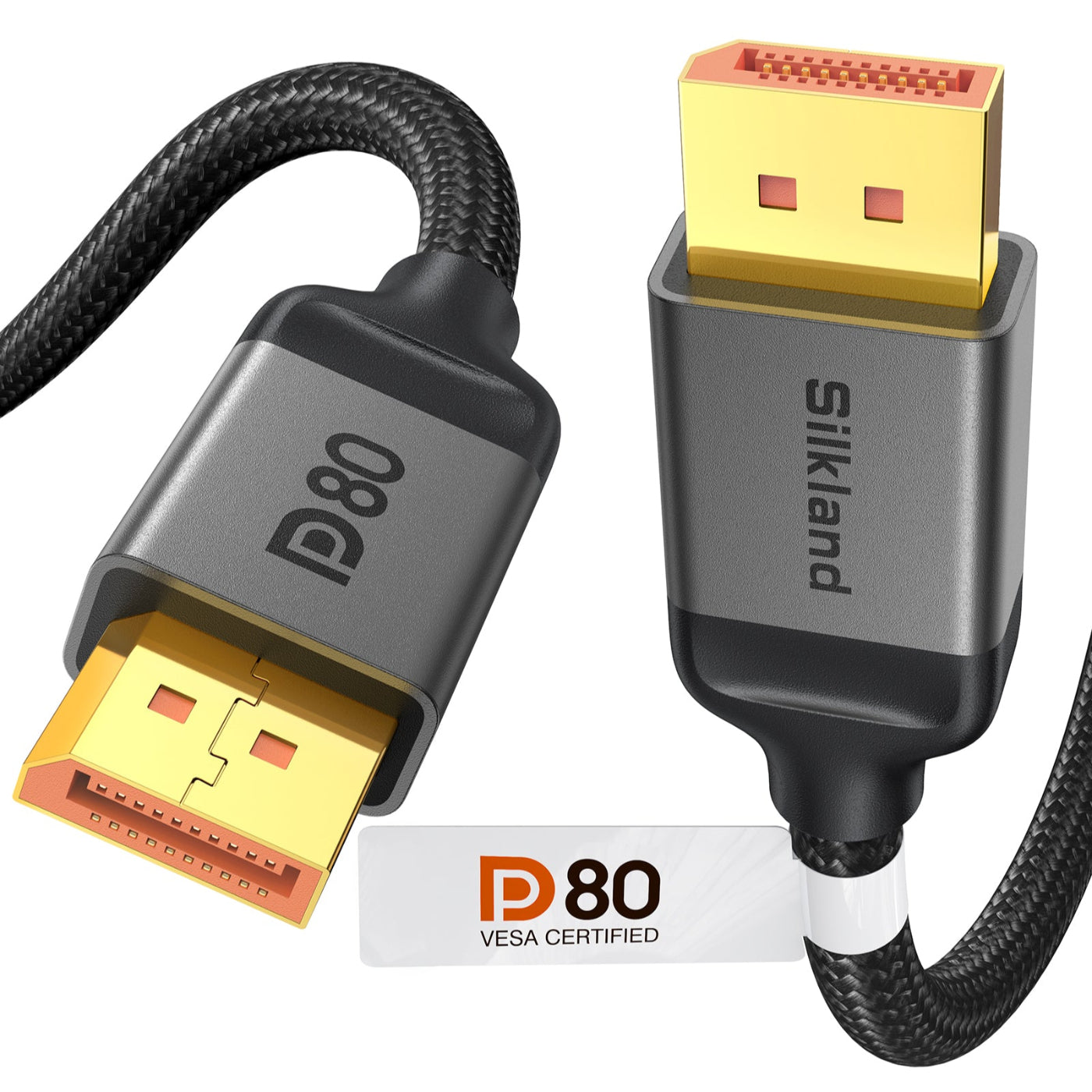
[VESA Certified] Silkland 80Gbps DisplayPort Cable 2.1 (1.6-16.5FT)
Amazon's VESA-certified DP80 cable delivers 80Gbps bandwidth for uncompressed 4K@240Hz. Featuring 24K gold-plated connectors and triple-shielded construction, it offers plug-and-play compatibility with major GPUs and monitors, backed by a 24-month warranty.

[VESA Certified] Silkland 54Gbps DisplayPort Cable 2.1 (1.5-25FT)
Silkland's VESA-certified DP 2.1 cable supports 54Gbps bandwidth, delivering uncompressed 8K and refresh rates up to 4K@480Hz (with DSC). Engineered for gaming with VRR, ALLM, and a secure latch design, it ensures smooth visuals across major gaming monitors and GPUs. Backed by a 24-month warranty with 18-hour technical support.
Share:
Thunderbolt 4 vs Thunderbolt 5: What’s the Real Difference in Speed, Power, and Compatibility?
HDMI 2.2 vs DisplayPort 2.1: What’s the Real Difference